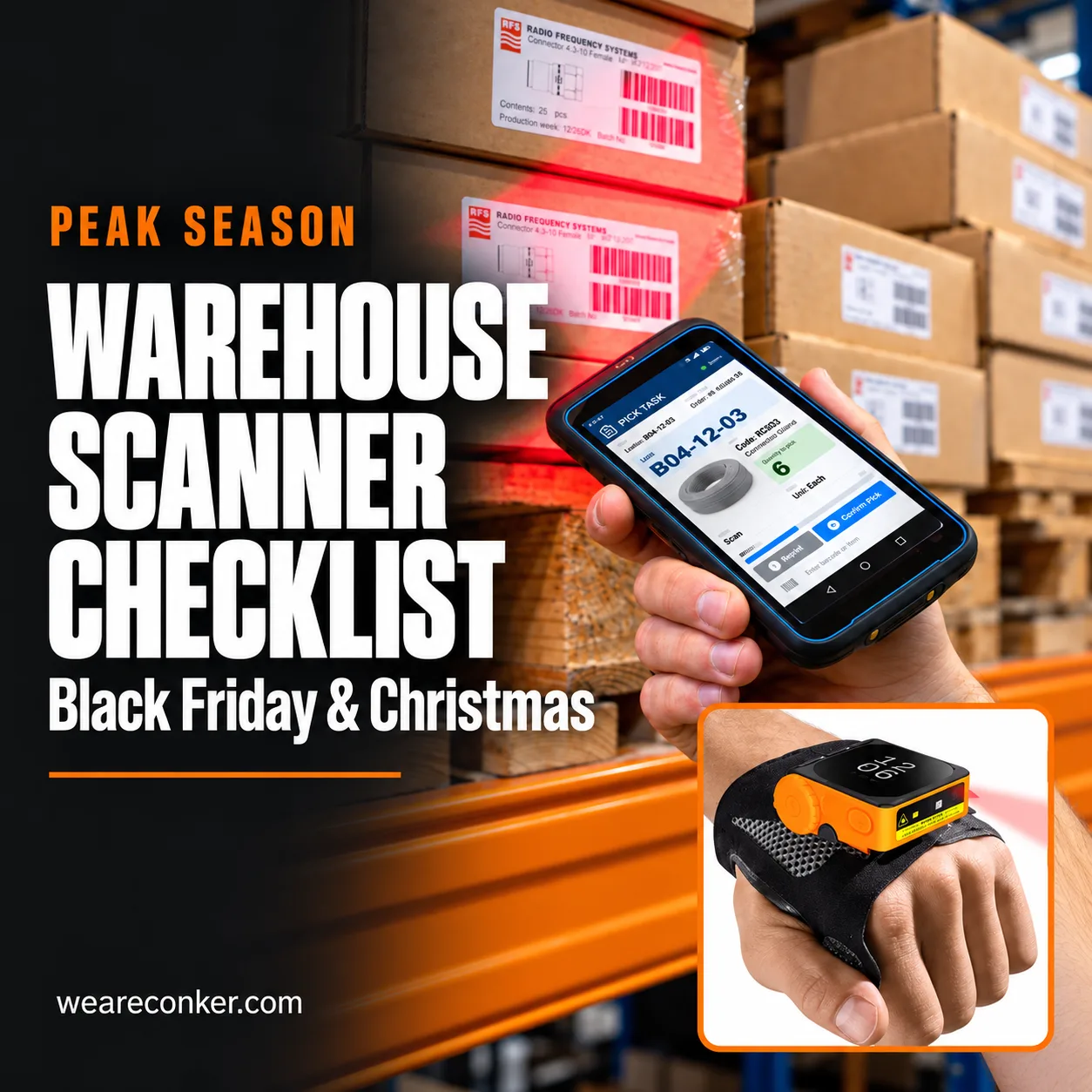
To prepare warehouse barcode scanners for Black Friday and Christmas, check working device numbers, battery endurance, charging capacity, barcode readability, connectivity, software access, staff readiness and replacement procedures. Test the complete workflow under conditions that reflect your busiest shifts, then give each issue an owner and a deadline.
Black Friday falls on 27 November 2026, followed by Cyber Monday on 30 November and December fulfilment activity. A scanner failure can interrupt picking or dispatch while an operator finds a replacement, signs in and resumes the task. Knowing how long that takes in your warehouse helps you plan a workable response.
A scanner that powers on has passed only the first check. The real test is whether the operator can complete the warehouse task with it.
This warehouse barcode scanner checklist focuses on device readiness. For stock, layout and staffing considerations, see our guide to wider warehouse peak-season preparation.
What belongs on your warehouse barcode scanner checklist?
Check the whole setup: devices, power, labels, connections, software, people and the process for dealing with a failure.
Use the table below to record what is ready and what needs attention. Give each outstanding action an owner, deadline and retest date.
Check
Practical test
Ready when…
Device availability
Compare usable devices with maximum concurrent requirements
Each role has a compatible device and a defined contingency
Batteries and charging
Run representative tasks and test the charging rotation
Devices cover the required shift or have a tested battery-change arrangement
Barcode reading
Scan representative labels at normal working distances
Required labels read reliably against your agreed acceptance criteria
Connectivity
Complete test transactions along actual working routes
Transactions complete without unresolved connection failures
Software and access
Test normal and spare-device logins
Users can access the correct applications and permissions
Staff readiness
Ask operators to complete normal and exception tasks
Users can complete their tasks and know when to escalate
Failure response
Rehearse replacing a device mid-task
Work resumes through a documented, tested process
Monitoring
Assign metrics and an issue owner
Problems can be recorded, investigated and acted upon
Do you have enough working scanners for your busiest shift?
Start with a device count split into four categories: working, damaged, missing and away for repair. Count only verified working units towards operational capacity.
Then calculate the maximum number of devices needed at the same time. Total headcount alone will not tell you this. Overlapping shifts, shared equipment and different scanning roles all affect demand.
Include receiving, picking, packing, dispatch and returns. If your business expects increased returns after Christmas, assess that workload separately.
Check that each spare is supported, compatible and configured for the job it may need to cover. A device sitting in a cupboard is not a usable replacement until someone has tested it.
For wearable setups, count scanners, host devices and necessary gloves or straps separately.
Hypothetical example: A warehouse needs 40 devices during its busiest shift but has only 37 verified working units. It has a three-device shortfall before allowing for any spare capacity.
There is no single spare percentage suitable for every warehouse. Base your buffer on failure history, repair and replacement lead times, workflow criticality and whether devices can move between roles.
Action: Create a device count by role and shift, then record shortfalls.
Will batteries and charging cover the full workload?
Run a controlled battery test using the warehouse application, representative scanning activity and normal screen settings. Record whether the device covers the required shift and when it reaches its low-battery threshold.
Test a representative selection of devices, including older batteries. Follow the manufacturer’s operating and charging limits. Cold conditions can reduce available battery performance, so include the environments where your devices are used.
Record runtime, recharge time and any interruptions. Use these observations alongside manufacturer specifications and operating limits.
Check the charging arrangements too:
Use manufacturer-approved, compatible chargers, cradles and batteries.
Inspect charging equipment and contacts for damage.
Confirm there are enough charging slots between shifts.
Keep replacement batteries charged and identifiable where applicable.
Test the handover between outgoing and incoming staff.
Removable does not mean hot-swappable. Some devices support battery replacement while remaining operational; others require a shutdown, restart or application login. Verify the procedure for each model.
If you need additional accessories, confirm compatibility and availability before ordering.
Action: Confirm that each device covers its required workload or has a tested battery-change and charging arrangement.
Can your scanners read the labels your team handles?
Build a test set using labels your team encounters: supplier cartons, location labels, carrier labels and difficult examples.
Include small labels, curved packaging, reflective wrapping and damaged or creased barcodes where these occur in your operation.
Test at the distances and in the lighting operators normally use. Record failures and check whether the issue follows the label, device, location or scanning technique.
Reading the barcode is only part of the task. The warehouse application must also interpret and validate the scan correctly. Check that the transaction relates to the intended product, location, quantity or order.
A confirmation sound does not prove the entire transaction is correct.
Document the response to an unreadable label. Depending on your procedures, that might involve authorised manual entry, reprinting or escalation. Staff should know which options are permitted.
Action: Keep the label test set and repeat relevant checks after device, software or label changes.
Does connectivity hold up across real warehouse routes?
Use the actual devices to follow receiving, picking, packing and dispatch routes, including loading bays. Complete controlled test transactions as you move between areas.
Where practical, test under representative stock levels and device demand. Warehouse layout, stored materials and wireless traffic can affect performance.
When a problem occurs, record the location, time, device, user and application.
Repeated failures in one location warrant investigation of coverage, interference and roaming. Failures associated with one device model warrant checks of configuration, firmware and compatibility. These patterns help narrow the investigation but do not establish the cause.
For a Bluetooth glove scanner paired with a Wi-Fi-connected host, check:
The scanner-to-host connection.
The host’s connection to the warehouse network.
Access from the network to the warehouse application.
Adapt these checks to your actual setup. An integrated wearable computer may use a different arrangement.
Do not assume every interruption is a scanner fault. Ask the relevant IT or network owner to investigate unresolved problems.
If the application supports offline work, test both the interruption and subsequent synchronisation in a controlled workflow. Confirm that transactions are neither lost nor duplicated.
Action: Record connection failures with enough detail for someone to investigate them.
Are software, logins and replacement devices ready?
Take a spare device off the shelf and complete a representative task, from login to completion. This can reveal access, configuration and workflow problems before the device is needed during a busy shift.
Check that:
Application versions and scanner settings are appropriate for the workflow.
Permissions and licences cover the users who need access.
Shared-device logins and session handovers work correctly.
Replacement devices have the necessary configuration.
Interrupted tasks can be recovered without losing or duplicating transactions.
If you use mobile device management, check that all intended devices are enrolled, including spares. Verify which settings and applications your configuration deploys automatically and which still require manual work.
Test necessary updates on a representative group before wider deployment, with a recovery plan. Coordinate routine changes around busy operations while handling urgent security issues through your IT team’s process.
Action: Prove that an authorised operator can take a spare device and complete the required task.
Can temporary staff complete tasks and handle exceptions?
An induction introduces the equipment. A practical assessment shows whether someone can use it.
Ask each new operator to:
Complete a normal task, from login to confirmation.
Respond to a deliberate wrong-item or wrong-location mismatch.
Follow the procedure for an unreadable label.
Demonstrate the approved charging, battery-change or device-swap process.
Report a damaged or disconnected device and obtain help.
Run these checks in a controlled training workflow so deliberate errors do not affect live stock records.
Cover collection, return and shift handovers. For wearables, check fit, left- and right-handed use, and manufacturer-approved cleaning procedures.
Make escalation instructions easy to find. Staff should know what to do when a scan fails, rather than improvising during the busiest shift.
Action: Record completed assessments and provide further training where needed.
What happens if a scanner fails during a busy shift?
Rehearse the replacement process before you need it. Use a controlled test workflow and measure the time from interruption to successful task completion.
Make one device unavailable during a test task.
Ask the operator to obtain the correct spare.
Confirm that login and application access work.
Resume the task without losing or duplicating the transaction.
Record the fault and follow the repair process.
Review what delayed recovery.
The delay may involve equipment, access or communication. A configured spare is of little help if nobody on the shift knows where it is stored.
Keep warranty cover, repair turnaround and replacement arrangements separate in your plan.
Conker lists accidental damage cover under RELAX Plus and on-site device swap-outs under RELAX 360. Confirm the cover, service times, conditions and replacement arrangements that apply to your agreement.
Rehearse your own contingency process so operators know how to resume work while a failed unit is repaired.
Action: Name an escalation contact for each shift and verify how operators obtain a working replacement.
When should you run these checks, and what should you monitor?
Start with the capacity audit. Additional devices need time for delivery, configuration and testing, so confirm supplier lead times before relying on new equipment.
Timing
Recommended action
Late October
Audit devices, identify capacity gaps and confirm supplier lead times
Early November
Test batteries, labels, connectivity and application access; resolve issues
Before your busiest trading period
Rehearse failures, verify spares and complete staff assessments
Throughout November and December
Run brief shift checks and track recurring problems
After your site’s returns peak
Review failures and plan repairs, replacements and future capacity
Track a small set of measures consistently:
Device-related downtime.
Battery interruptions per shift.
Failed scans or repeated scan attempts, where measurable.
Time needed to restore work after a failure.
Picking and dispatch errors alongside device issues, without assuming one caused the other.
Compare results with your own baseline.
Conker describes Scanning Performance Analytics as providing scan counts by device and user. Confirm compatibility and reporting requirements for your setup, and use separate records for metrics it does not capture.
If time is limited, begin with device capacity, battery coverage and a failure rehearsal. Then prioritise the remaining checks according to your known operational problems.
What should you confirm before buying more devices?
Test results may show a need for repairs, additional units or accessories. Before ordering, answer these questions:
How many devices are required simultaneously, by role?
Which existing units passed the relevant checks?
Which problems relate to hardware, connectivity or software?
How long will delivery, configuration and testing take?
Which workflows suit handhelds, wearables or a combination?
What does an interruption cost your operation, and which contingency is practical?
You can also use Conker’s TCO calculator to explore its stated ownership-cost assumptions. Calculate lost-productivity costs separately; the calculator page says those costs are excluded.
There is no fixed percentage suitable for every site. Base your spare pool on concurrent demand, device compatibility, failure history and repair or replacement lead times. Test that each spare can perform its assigned workflow.
Should we replace every scanner before Black Friday?
Use test results to identify repairs, replacements and capacity gaps. Devices that remain supported, compatible and reliable may still meet your needs. Allow time to configure and test any new equipment before deployment.
Are wearable scanners better for peak-season picking?
Suitability depends on the task. Wearables can suit frequent scanning where operators need their hands available. Handhelds may be more practical for tasks involving substantial typing, photos or signatures. Trial the setup with the people and workflows involved.
Can warehouse scanners keep working without Wi-Fi?
It depends on the device, connection and application. A supported alternative connection may keep the application online. If all connectivity is lost, continued work depends on the application’s offline capabilities and subsequent synchronisation. Test interruption and recovery on your actual setup.
Why do warehouse scanners keep disconnecting?
Possible causes include Wi-Fi coverage, interference, access-point roaming, Bluetooth connections, device configuration and application sessions. Record the location, time, device and application for each interruption so your IT team can investigate the pattern.
Complete the checks before peak trading
Verify working device capacity against your busiest shift.
Test batteries, labels, connectivity and application access together.
Confirm that staff can handle exceptions and obtain help.
Rehearse device replacement and record how long recovery takes.
Preparing your warehouse for peak season? Discuss your warehouse device requirements with Conker. Share your workflows, shift patterns and current setup so the team can help assess suitable handhelds, wearable scanners, accessories and support options.